Written by: Ali Dirmilli
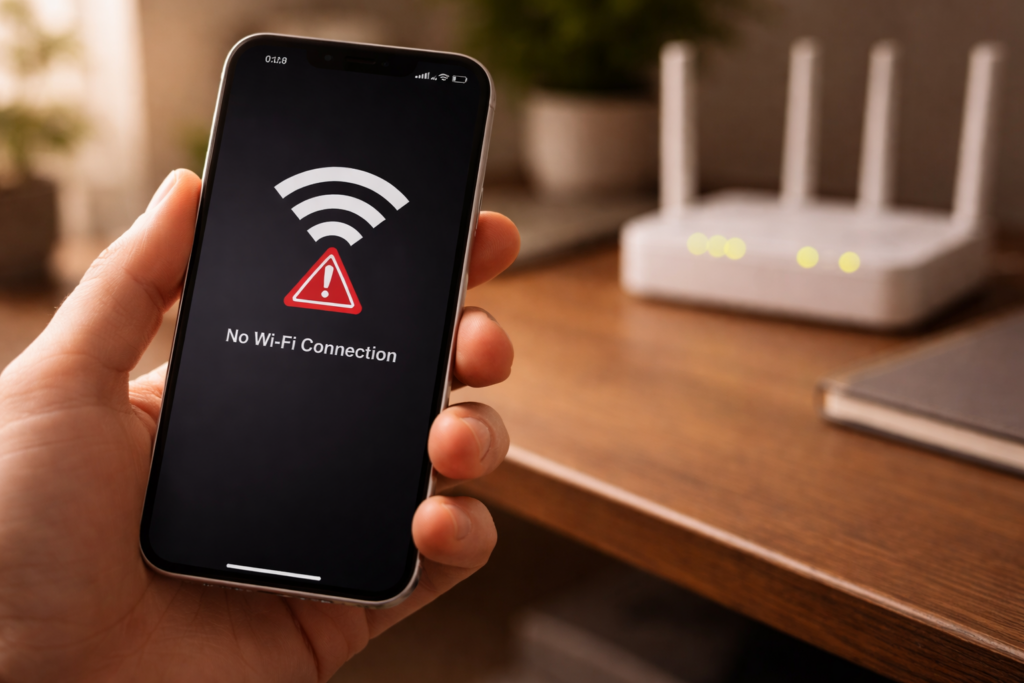
Few things are more maddening than watching your laptop, tablet, and smart TV all hum along on Wi-Fi — while your phone sits there stubbornly refusing to connect. You’ve restarted it a dozen times. Airplane mode has been toggled on and off more than you’d care to admit. Maybe you’ve even yelled at the thing a little. And still, nothing. If your phone won’t connect to Wi-Fi even though every other device in your house is online, you’re not dealing with a router problem. The issue lives inside the phone itself. And the good news? Most of the time it’s fixable.
At iMobile Denver, we see this issue walk through our doors multiple times a week. After years of hands-on diagnostics, we’ve learned that the cause usually falls into a handful of categories — some software, some hardware, and a few that surprise people. This guide breaks down the real reasons your phone might be refusing Wi-Fi and exactly what to do about each one.
Section 1: Why Your Phone Specifically Loses Wi-Fi While Other Devices Stay Connected
Before you start factory resetting anything, it helps to understand why this happens to one device and not the rest.
How Your Phone’s Wi-Fi Connection Actually Works
Every device on your network negotiates its own individual connection with your router. Your phone has its own Wi-Fi antenna, its own network chipset, and its own software stack handling that handshake. So when something goes wrong on your phone’s end — whether it’s a corrupted network profile, a software glitch, or a damaged antenna — it has zero effect on your other devices.
The Most Common Root Causes
Here are the most common root causes we identify during smartphone repair appointments:
- Corrupted saved network data. Your phone stores Wi-Fi credentials and connection parameters. Sometimes that saved profile gets corrupted after an update or unexpected restart, and the phone just silently fails to connect.
- IP address conflict. If another device grabbed the same local IP your phone was using, the router may reject your phone’s connection attempt. This happens more often than people think, especially on crowded home networks.
- Outdated or buggy firmware. A bad OS update can break Wi-Fi drivers. We’ve seen this repeatedly with both iPhones and Samsung Galaxy devices after major version releases.
- Physical antenna damage. Drops, water exposure, or even a previous screen repair done incorrectly can disturb the internal Wi-Fi antenna. This is the scenario most people don’t consider, but it’s surprisingly common. If your phone recently had any kind of physical damage, our iPhone repair and Samsung repair teams can inspect the antenna connections during a diagnostic.
Understanding which of these applies to your situation makes the difference between wasting an hour on Google and actually solving the problem.
Section 2: Step-by-Step Troubleshooting When Your Phone Won’t Connect to Wi-Fi
Let’s walk through fixes in order, from quickest to most involved. Try each one before moving to the next.
Step 1: Forget the Network and Reconnect
Go to your Wi-Fi settings, tap on your home network, and select “Forget.” Then reconnect by entering the password fresh. This clears the saved profile and forces your phone to negotiate a completely new connection. It solves the issue roughly 30–40% of the time in our experience.
Step 2: Reset Your Network Settings
On iPhone, go to Settings > General > Transfer or Reset iPhone > Reset > Reset Network Settings. On Android, it’s typically under Settings > System > Reset Options > Reset Wi-Fi, Mobile & Bluetooth. This wipes all saved networks, Bluetooth pairings, and VPN configs. It’s more aggressive than Step 1 but catches deeper software corruption.
A heads up — you’ll need to re-enter passwords for every Wi-Fi network after doing this.
Step 3: Check for Software Updates
Manufacturers regularly patch Wi-Fi connectivity bugs. If you’ve been postponing that system update notification, now is the time. Apple and Google both document known Wi-Fi bugs in their release notes, and sometimes a simple update is the entire fix.
Step 4: Toggle MAC Randomization Off
Modern phones randomize their MAC address for privacy. Occasionally, this confuses certain routers — particularly older ones or those provided by ISPs. Go to your Wi-Fi network’s advanced settings and switch to “Use Device MAC” instead of a randomized one. We’ve seen this fix connectivity on dozens of devices where nothing else worked.
Step 5: Boot Into Safe Mode
Android users can restart in Safe Mode (hold the power button, then long-press “Power Off” until Safe Mode appears). If Wi-Fi works perfectly in Safe Mode, a third-party app is interfering — typically a VPN, ad blocker, or battery optimization tool. Remove recently installed apps one by one until you find the culprit.
iPhone users don’t have a traditional Safe Mode, but you can test by going to Settings > VPN and disabling any active VPN profiles.
Step 6: Try a Different Wi-Fi Band
If your router broadcasts both 2.4GHz and 5GHz networks with different names, try connecting to the one you aren’t currently using. Some phones have intermittent issues with one band but work fine on the other. This can at least get you connected while you work on a permanent fix.
For a deeper dive into connectivity-related hardware failures, our post on why 5G phones keep dropping to “No Service” covers the antenna and modem-level issues that affect wireless connections broadly.
Section 3: When Software Fixes Don’t Work — Recognizing a Hardware Problem
Here’s the honest part that most online guides skip: sometimes the problem isn’t software at all.
If you’ve gone through every step above and your phone still won’t connect to Wi-Fi — or it connects but drops constantly, or shows an absurdly weak signal while standing next to the router — there’s a good chance you’re looking at a hardware fault.
Common Hardware Culprits
Damaged or disconnected Wi-Fi antenna flex cable. Inside your phone, the Wi-Fi antenna connects to the logic board through a tiny flex cable and connector. A drop can pop it loose, and even a poor-quality screen replacement can pinch or tear it. We regularly find this during diagnostics at our Denver repair shop, and reconnecting or replacing the flex cable usually resolves the issue within minutes.
Corroded or water-damaged Wi-Fi chip. Water exposure doesn’t always kill a phone outright. Sometimes it corrodes individual components over weeks. The Wi-Fi and Bluetooth chip is particularly vulnerable because of its position on the logic board in many phone models. If your phone was exposed to moisture even months ago, this could be the culprit.
Faulty logic board solder joints. On older devices or phones that have been through extreme temperature changes, micro-fractures in solder joints can cause intermittent connectivity loss. This is a board-level repair and requires professional micro-soldering.
When to Seek Professional Help
If none of the software troubleshooting above made a difference, it’s time to bring the phone in for a physical inspection. Continuing to mess with settings at that point is just spinning your wheels. A professional diagnostic can identify the exact failed component — and in many cases, the repair is quicker and cheaper than people expect.
You can get a fast estimate through iMobile Denver’s instant quote tool before even coming in. And if you’ve got questions specific to your device or situation, our common repair questions page and device repair FAQs cover a lot of ground.
According to the FCC’s guide on wireless device interference, physical obstructions and hardware faults remain leading causes of device-specific connectivity failure — so you’re not imagining things if your phone is the only one struggling.
Section 4: Conclusion and Final Thoughts
A phone that won’t connect to Wi-Fi when everything else is working fine is almost always a phone-level issue — not a network one. That’s actually the reassuring part. It means the problem has a specific cause and, in most cases, a straightforward solution.
Start with the software basics: forget the network, reset your network settings, check for updates, and rule out app interference. These steps resolve the majority of cases we see. But if the problem persists — especially after a drop, water incident, or screen repair — the answer is almost certainly hardware-related. A loose antenna cable, corroded chip, or damaged connector won’t fix itself with a reboot.
The worst thing you can do is ignore it and assume it’ll go away. Wi-Fi issues caused by hardware tend to get worse over time, not better. Getting a professional repair evaluation sooner rather than later can save you money and prevent data loss from more aggressive DIY attempts like factory resets.
If you’re in the Denver area, reach out to our team — we’ll tell you straight whether it’s something you can fix at home or something we need to open up and look at.
FAQs
Why does my phone say “connected” to Wi-Fi but have no internet?
This typically means your phone successfully authenticated with the router, but the router isn’t passing internet traffic to your device. It’s often an IP conflict or a DNS issue. Try forgetting the network and reconnecting, or manually set your DNS to 8.8.8.8 (Google’s public DNS) in your Wi-Fi settings.
Can a cracked screen cause Wi-Fi problems?
Not the crack itself — but the repair can. If a screen replacement was done improperly, the technician may have disconnected or damaged the Wi-Fi antenna cable that runs near the display assembly. We see this more often than you’d think, which is one reason quality repairs from experienced technicians matter.
Does a phone case block Wi-Fi signal?
Most standard cases don’t cause issues. But heavy-duty metal cases or cases with magnetic mounts can interfere with wireless signals. If you’re troubleshooting, try removing your case entirely and testing the connection bare.
Should I factory reset my phone to fix Wi-Fi?
A factory reset should be a last resort, not a first step. It wipes all your data and apps and doesn’t fix hardware problems. Try the less destructive steps in this guide first — resetting network settings alone solves the problem for most people without touching your photos, apps, or messages.
How do I know if my phone’s Wi-Fi antenna is broken?
The biggest clue is weak signal strength even when you’re standing right next to the router, or Bluetooth also acting unreliable (since Wi-Fi and Bluetooth often share the same chip). If both wireless functions are struggling, there’s very likely a hardware fault. A quick diagnostic at a repair shop like ours can confirm it in minutes.
This guide is based on real-world repair experience at iMobile Denver. While these troubleshooting steps resolve the majority of Wi-Fi connectivity issues, every device is different. If you’re unsure about opening your phone or performing any hardware-level fix, we always recommend consulting with a qualified repair professional to avoid further damage.